Want to charge sellers a subscription fee to list on your marketplace? This guide walks you through connecting Stripe to Tradly’s SuperAdmin so you can create plans, accept payments, and manage subscriptions — end to end.
Here’s everything you’ll set up:
- Create products and prices in Stripe
- Link plans via SKU to SuperAdmin
- Configure Stripe webhooks
- Enable and test the payment flow
- Fix misconfigurations (missing SKUs, webhook issues)
Step 1 — Create products & prices in Stripe
- Log in to your Stripe Dashboard
- Go to Products → Add Product
- For each plan you want (e.g. Free, Basic, Pro):
- Enter the product name (e.g.
Basic Plan) - Add a Price: set type to Recurring, choose Monthly or Yearly, set currency and amount
- Copy the Price ID (e.g.
price_1NKxyz...) — you’ll use this as the SKU in the next step
- Enter the product name (e.g.
Tip: Use Stripe Test Mode first to validate everything before going live.
Step 2 — Add subscription plans in SuperAdmin
- Log in to Tradly SuperAdmin
- Go to Subscription Management → Add New Subscription
- Fill in the form:
| Field | Description |
|---|---|
| Title | Plan name (e.g. Basic, Pro) |
| SKU | Paste your Stripe Price ID (e.g. price_1NKxyz...) |
| Description | Describe the plan features |
| Currency | e.g. USD |
| Amount | e.g. 9.99 |
| Allowed Listings | Number of listings allowed (e.g. 10) |
| Commission % | Platform fee percentage (e.g. 10) |
| Expiry Days | Validity period in days (e.g. 30) |
| Payment Method | Select Stripe |
| Status | Set as Active |
Important: Go to Payments → Payment Methods and click the Configuration button on the Header method. Enable Subscription and set Subscription Type as Stripe.
Step 3 — Configure the Stripe webhook
- In your Stripe Dashboard, go to Developers → Webhooks
- Click + Add endpoint and use this URL format:
https://api.tradly.app/v1/payments/stripe/webhook/subscriptions/{your_tenant_name}
For example:
https://api.tradly.app/v1/payments/stripe/webhook/subscriptions/fashona
- Under Events to send, select:
customer.subscription.createdcustomer.subscription.updatedcustomer.subscription.deleted
- Click Add endpoint
- Copy the Webhook Secret — you’ll need it in the next step
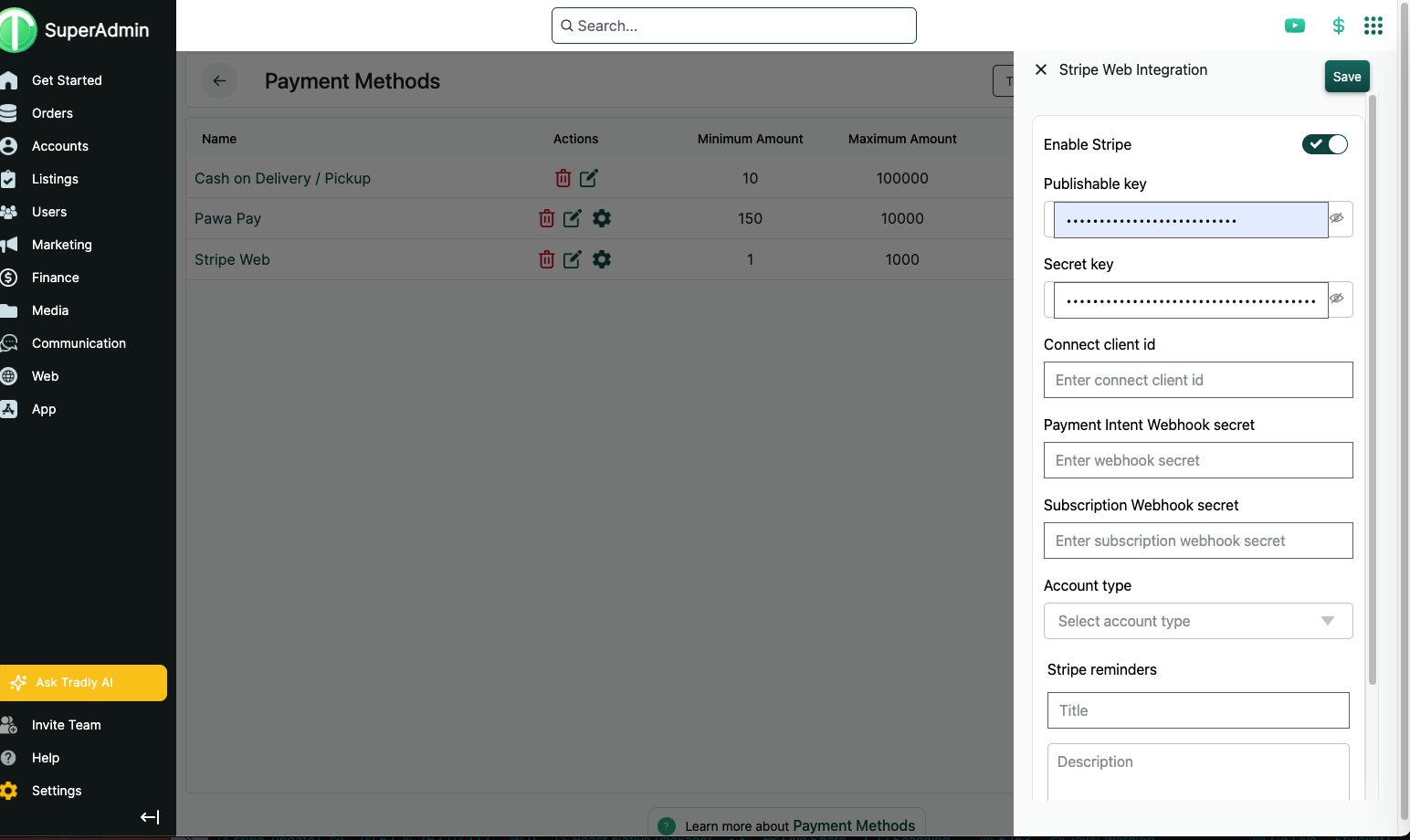
Step 4 — Connect Stripe API keys in SuperAdmin
- In SuperAdmin, go to Payments → Payment Methods
- Click Add Payment Method and select Stripe (Web)
- Click the icon on the Stripe row and enter:
| Key | Where to find it |
|---|---|
| Publishable Key | Stripe Dashboard → API Keys |
| Secret Key | Stripe Dashboard → API Keys |
| Webhook Secret | From Step 3 above |
Step 5 — Add a subscription page to your storefront
You need to create a dedicated page so users can browse and subscribe to your plans.
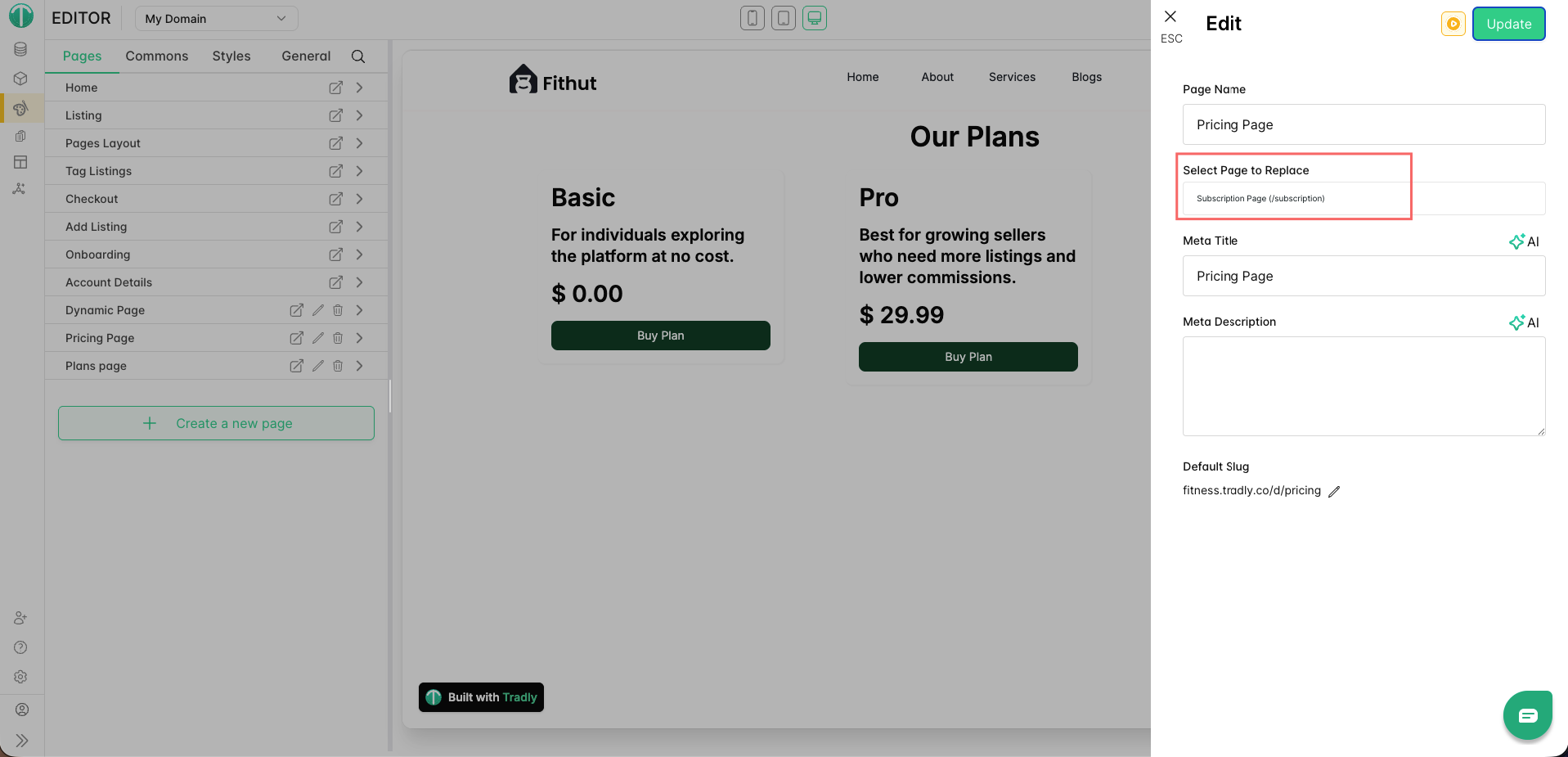
-
In the Editor, create a new page
- When creating the page, select the page type as Subscription from the dropdown
- When creating the page, select the page type as Subscription from the dropdown
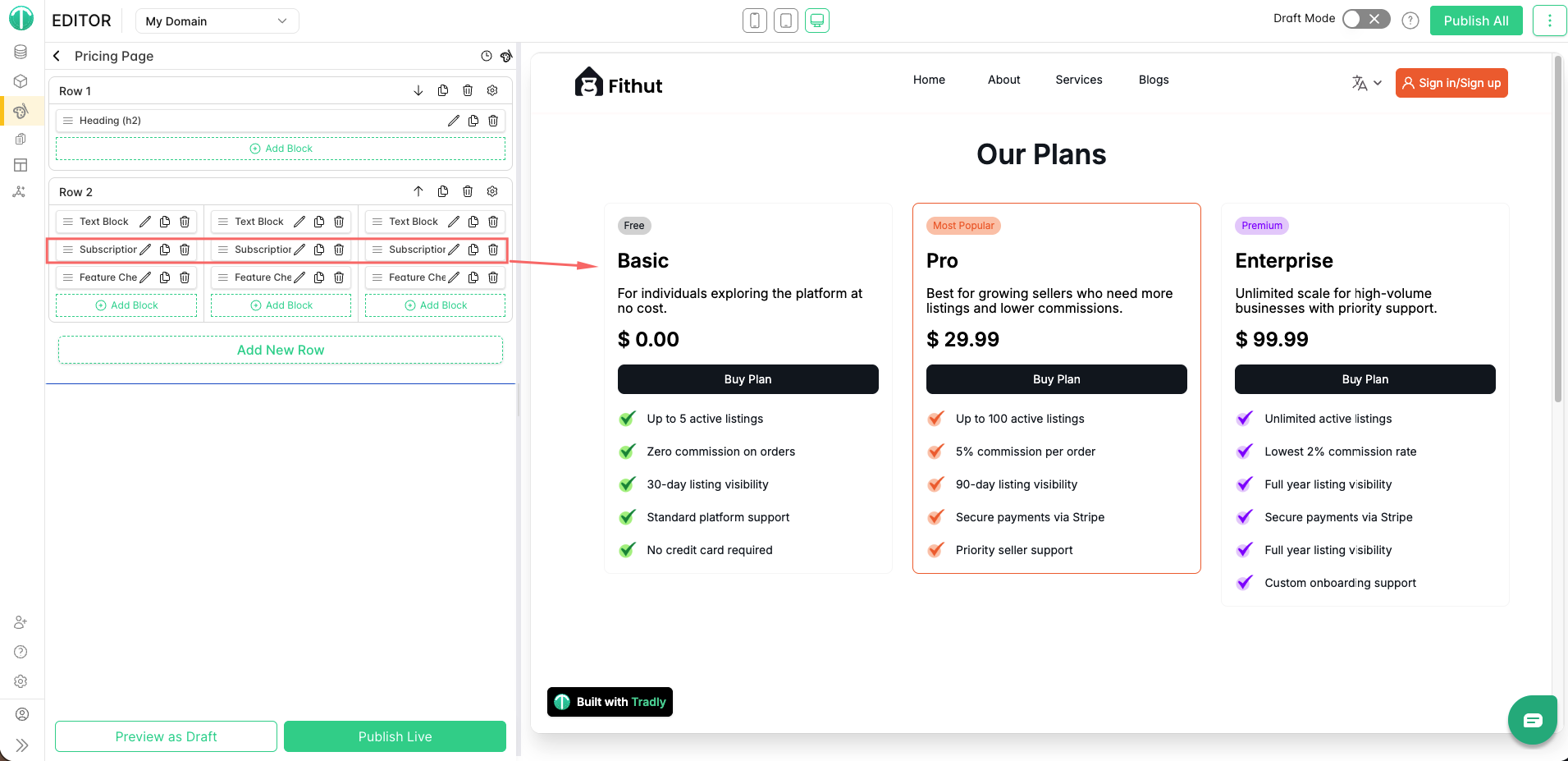
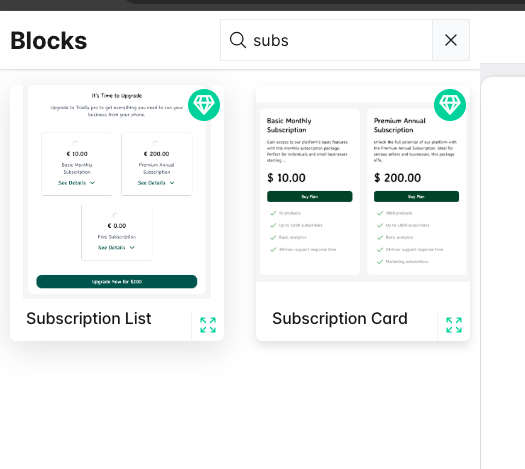
-
Add the Subscription Block — this automatically pulls your plans from SuperAdmin
-
Add a CTA button in your header, footer, or homepage linking to this page (e.g.
/subscription)
System behaviour: If a user tries to add a listing without a valid subscription, they’ll be automatically redirected to this page.
Step 6 — Test the full flow
- Go to your marketplace website
- Subscribe to a plan — you’ll be redirected to Stripe’s secure checkout
- Complete the payment
- Verify:
 Subscription is activated in SuperAdmin
- Webhook events are syncing in real-time
Troubleshooting
| Issue | Fix |
|---|---|
| Cannot edit subscriptions | Delete and recreate with the correct Stripe Price ID |
| Webhook not triggering | Recheck endpoint URL and selected events |
| Price mismatch | Match SuperAdmin amount with Stripe price exactly |
| Duplicate SKU | Use a unique Stripe Price ID per plan — 1:1 mapping required |
Migrating or fixing an incorrect setup
If your current plans are missing SKUs or are inactive, follow this cleanup process:
- Delete invalid plans in SuperAdmin (missing or incorrect SKUs)
- Create new products in Stripe with valid recurring prices
- Recreate subscriptions in SuperAdmin — paste the correct Stripe Price ID into the SKU field and fill out all other fields properly
Maintenance tips
- If you update a price in Stripe, update the SKU in SuperAdmin to match
- Never delete Stripe products that are linked to active plans
- Always use Stripe Test Mode to validate changes before going live
Questions or running into issues during setup? Drop a reply below — happy to help. 