 Microcopy & Translation Overview
Tradly provides multiple layers of translation and text customization.
You can control everything — from your system microcopy (app buttons, messages) to CMS content (pages, blocks), and even user-generated content.
1.  Microcopy & String Translation of System
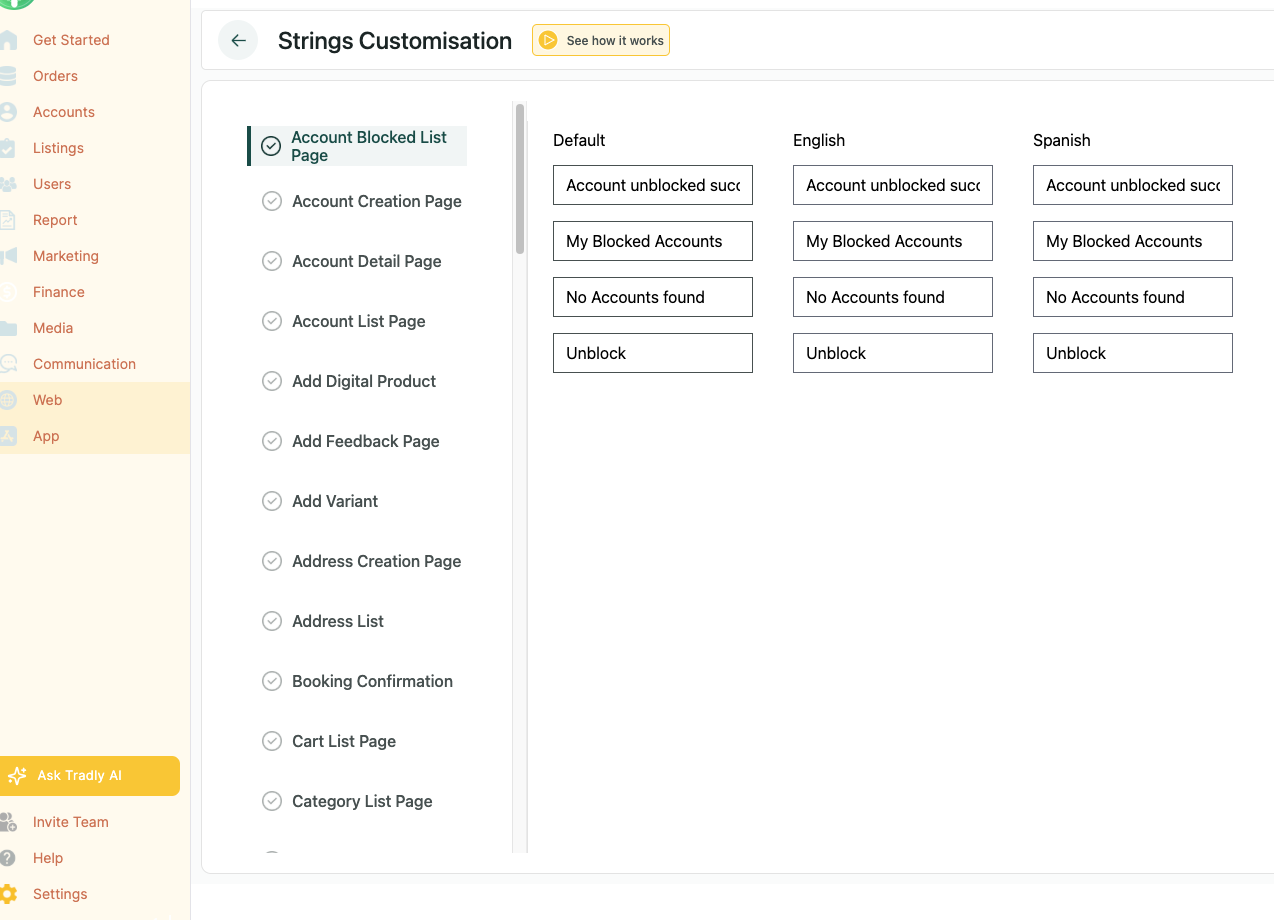
Microcopy (or string translation) allows you to edit all system-generated text used in:
- Mobile apps
- Tradly-hosted web apps
You can modify button labels, form instructions, and messages to match your brand tone or local language.
Example:
| Group | Description |
|---|---|
| User | All user-related pages (login, profile, settings, etc.) |
| Accounts | Vendor/seller or campaign creator pages |
| Listings | Product, campaign, or service-related pages |
Common Issues
-
Changed string not visible?
Close (kill) and reopen the app to reload updated text. -
Text too long and breaking layout?
Take a screenshot and report it with a short description. The Tradly team will review and adjust layout spacing if needed.
2.  CMS Content Translation
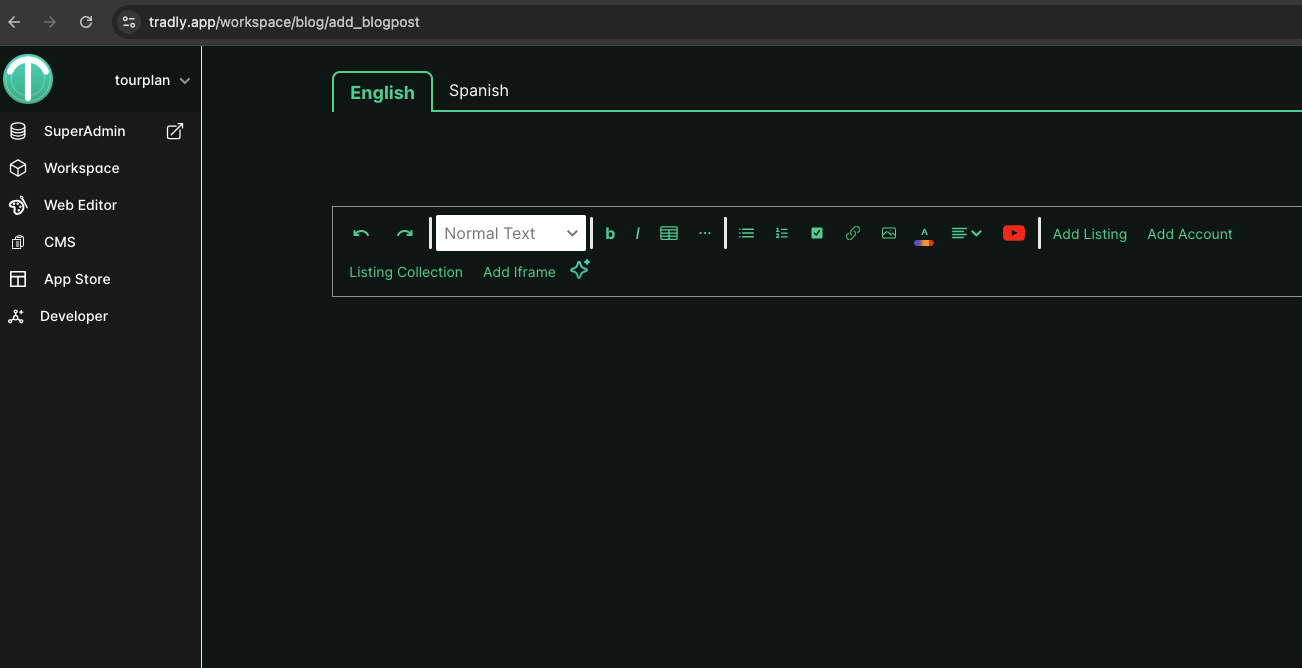
When you create pages or blogs in your Workspace, you can also add translations for each supported language.
 Example:
https://tradly.app/workspace/p/add_page
Here, you can write page or blogs or docs content in multiple languages so that users see your site content in their preferred language.
3. Editor Dynamic Pages & Blocks
Static Blocks Created in Editor
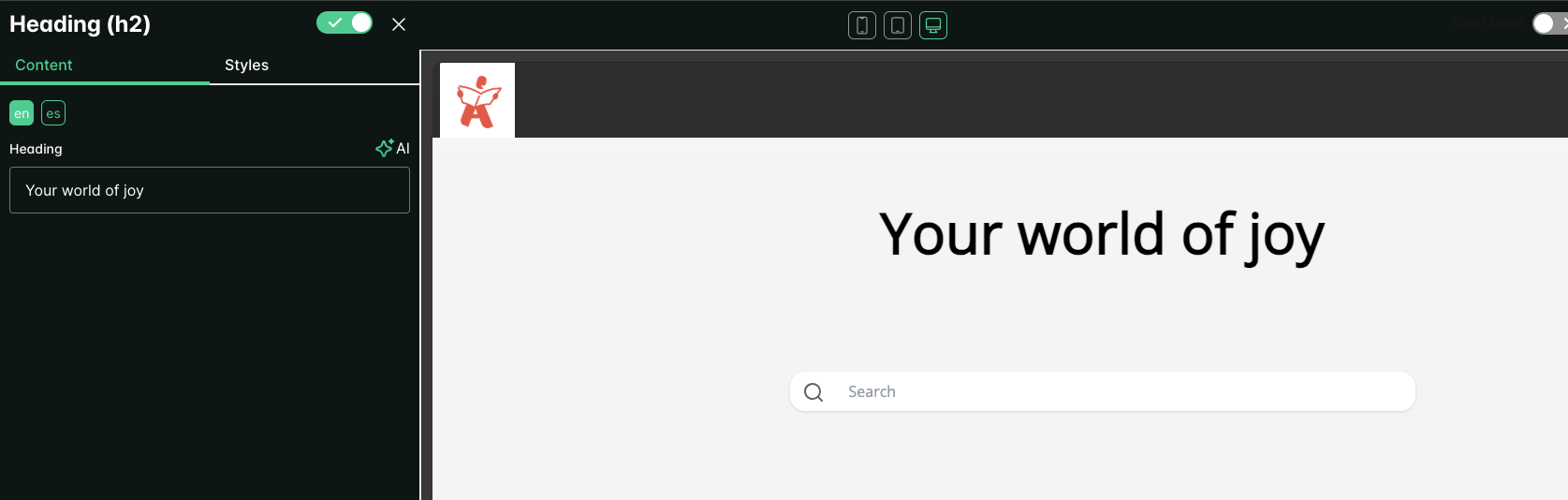
You can add translation for static blocks such as FAQ, Headers, and other text you create in Dynamic Pages in Editor.
- Go to your Editor.
- Navigate to the Dynamic Pages or Blocks section.
- Use the Translation Switch to add multiple language versions of your content.
This ensures your static and admin-written content (like FAQs, banners) appears correctly in all selected languages.
4.  End-User Content Translation (Automatic)
Tradly also supports automatic translation for end-user content, such as:
- Product listings
- Campaigns
- Service descriptions
When an end user creates content in one language, Google Translate integration in Tradly(Charged by Google) automatically generates translations for other supported languages.
This makes your marketplace multilingual-ready with no extra setup for users. Google Translate
4.  Enabling Language Switching
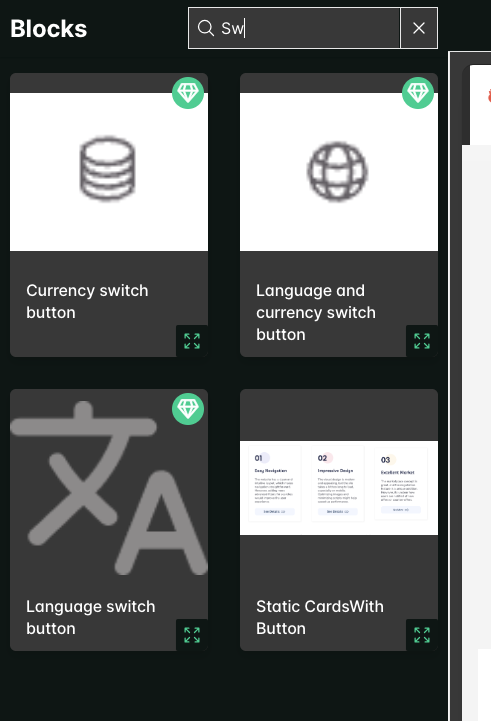
To let visitors switch between languages on your site:
- Go to Tradly.app/editor
- Navigate to Commons → Header
- Add a Block named “language switch”
Once added, users will see a language selector (usually at the top of the website).
How It Works
When users change the language:
- Microcopy — Buttons, system messages, and UI text update.
- CMS Content & Editor Dynamic Pages/blocks — Admin-created pages and blocks show their translated versions.
- User Content — Listings and other user-generated content display via automatic translation.
 Best Practices
- Always proofread translations added manually in CMS for cultural and linguistic accuracy.
- Keep your default language content short and clear — this improves translation quality.
- Test your language switcher to ensure all components reload properly after switching.
 Summary
| Translation Type | Source | Example | Translation Method |
|---|---|---|---|
| Microcopy / Strings | System text (UI) | Buttons, Alerts | Manual customization |
| CMS Content | Admin-created | Pages, Blocks | Manual multi-language entry |
| End-User Content | User-created | Listings, Services | Automatic (Google Translate) |